Complete the following steps to either add a default or a condition to a given
field.
-
Select .
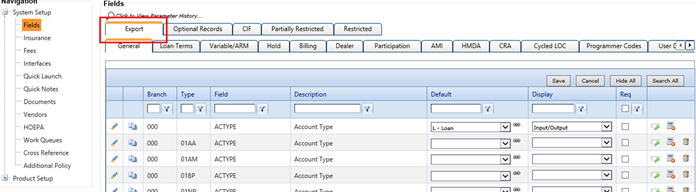
The
Fields node defaults to the
Export
tab.
-
Clear the values for the fields
requiring calculation additions.
-
Select Save when
the field contains a default value.
-
Select the
 Conditions icon for the
same field.
Conditions icon for the
same field.
Note Conditions can be used to populate
a field with a value based on test criteria rather than using a default value.
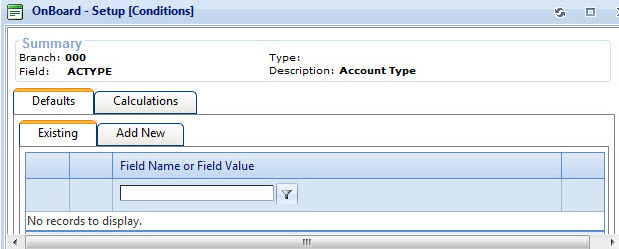
An
OnBoard - Setup (Conditions)
summary screen appears, defaulted to the
Defaults
tab.
-
Follow the instructions in the table to add defaults or
calculations.
| Situation |
Steps |
|---|
| Adding Defaults |
- Select the Add New tab.
- Enter the appropriate values in the App/Field Name or Field Value fields.
|
| Adding Calculations |
- Select the Calculations tab.
- Select the Add New tab.
- Enter the appropriate values in the Operator, App/Field Name, Field Value, Round to Decimals, and Half Adjust fields.
Tip When Fee is selected in the
App field, the
Conditions section
appears on the Calculations tab. Complete this section to add conditions to the
fee calculation, if needed.
|
-
Select Save.