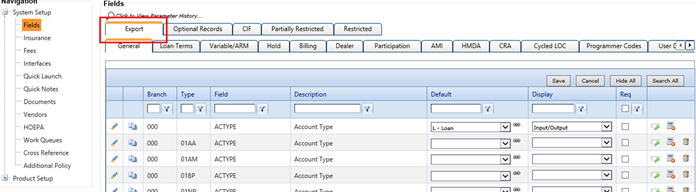
Complete the following steps to add a Default value to an
existing field.
-
Select .
The
Fields node defaults to the
Export
tab.
-
Select
 Default on the appropriate field.
Tip You can also add field defaults
through the
 Conditions
 option.
If a condition exists for the field, the
Default option is
not available.
-
Select drop-down menu values for
App/Field Name to use as the selected field's default.
Note When an application is
selected, the list of available field names is changed to correspond with the specified
application. The following Field Name drop-down values are
available for each application:
-
*Officer
-
*Core
-
*AccountNo
-
*Application
-
*Branch
-
*TotalFinancedFees
-
Select Default to save the
selection and return to the Fields node.
The Default column is
populated with the selection.
-
Repeat this procedure for other fields, as needed.