Running a ChexSystems Verification - Consumer
Complete the following steps to run a consumer verification request when ChexSystems is selected as the interface.
-
Select the Interfaces node from
the Loans
menu.
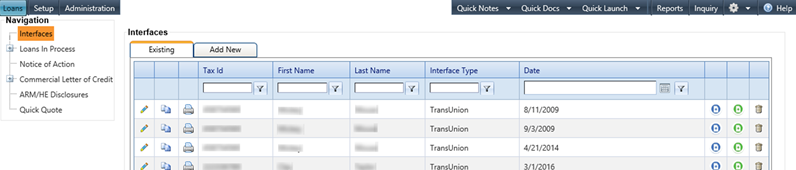
The Interfaces main grid screen appears.
-
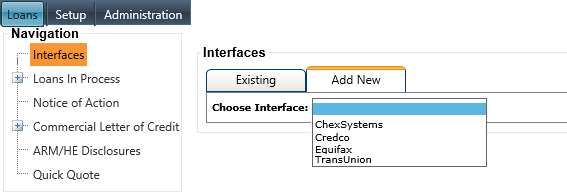
Select ChexSystems from the Choose
Interface drop-down menu.
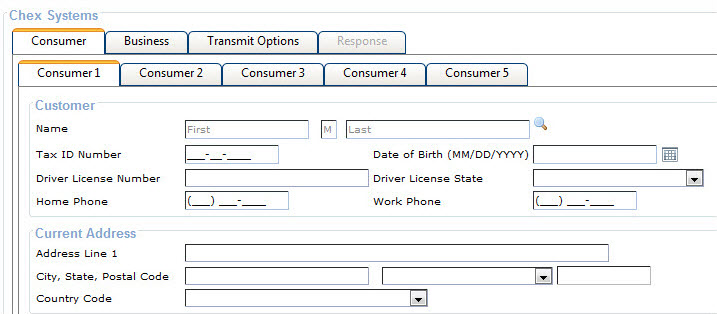
The Consumer 1 (default) of the five Consumer tabs appears.
-
Follow the steps in the table to
complete the appropriate information for transmission to ChexSystems Account
Verification.
Situation Steps Performing a Bank Customer Inquiry - Select the
 Spyglass
icon to display the Customer Selection
screen.
Spyglass
icon to display the Customer Selection
screen. - Enter search criteria and select Search.
- When the customer search is complete, select the Spyglass
icon to populate the fields with the current customer information.
Performing a Non-Bank Customer Inquiry - Manually enter the customer's information in the required fields.
Verify Multiple Applicants - Complete the required information for the additional applicants on the remaining Consumer tabs.
- Select the