Setting Fee Parameters
Complete the following steps to establish fee parameters within System Setup.
-
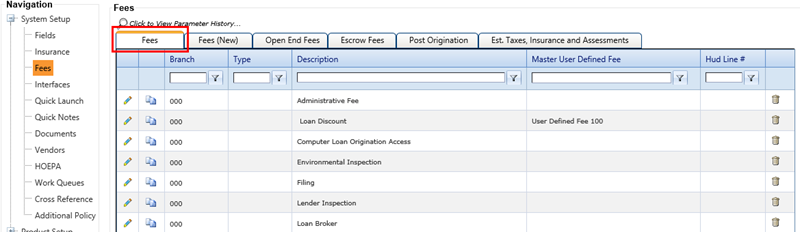
Select Setup > System Setup > Fees.
The Fees screen appears and defaults to the Fees tab.
-
Select the
 Edit icon for the
associated fee parameter (Description).
The Fees parameter screen appears.
Edit icon for the
associated fee parameter (Description).
The Fees parameter screen appears.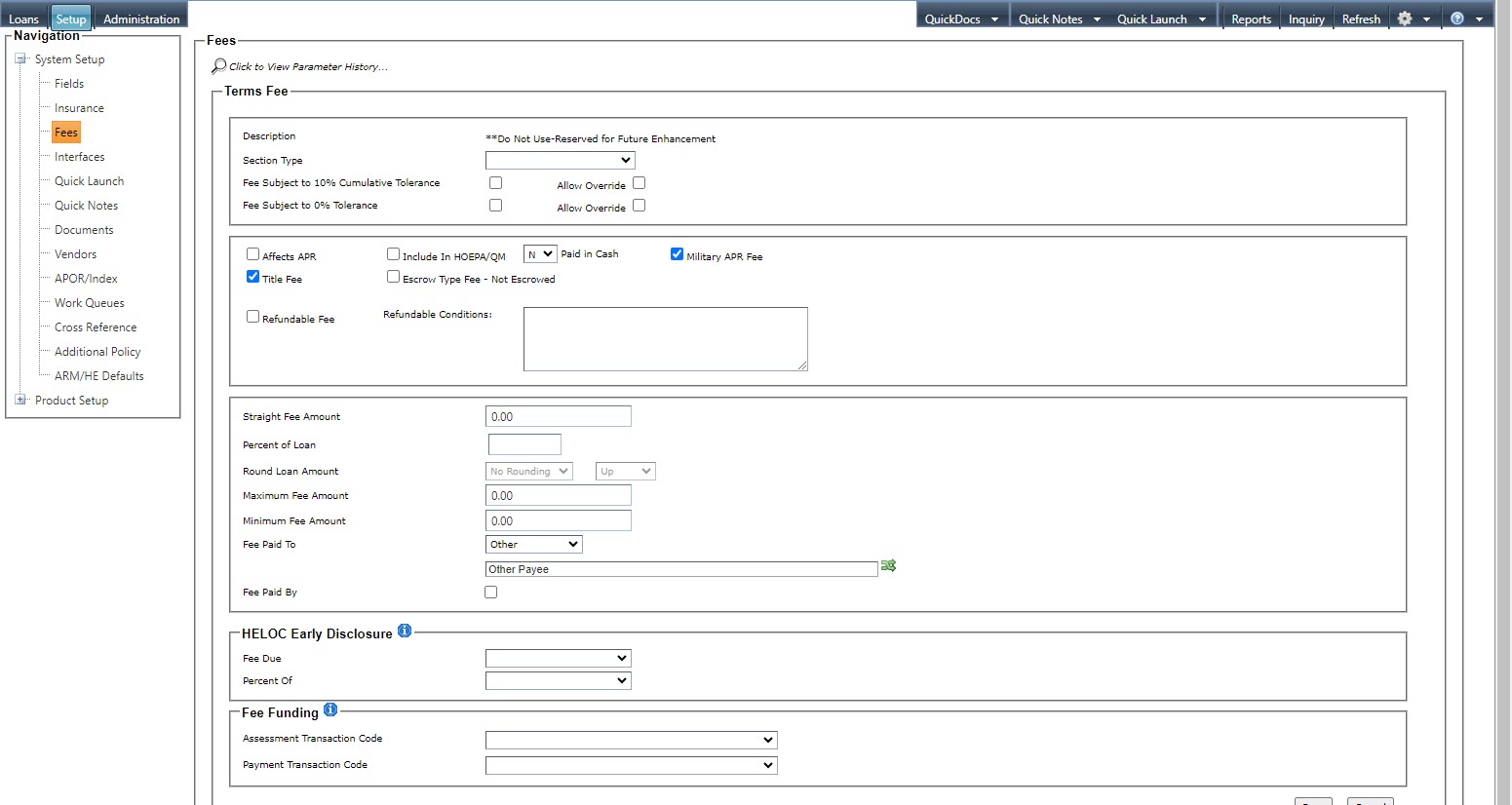
-
Set the defaults for the fees as
needed.
- Description
- The description can be changed when it is a user-defined fee.
- Section Type
- The Section Type defines which section that the fee prints on for the Integrated Disclosures document.
- Fee Subject to 10% Cumulative Tolerance
- This check box defaults from System Setup > Fees. When the check box is not selected in System Setup, it is
only available on the Fee Edit screen during the
application phase for consumer closed-end real estate transactions with an
application date of 10/3/2015 or after. It is then carried to closing and cannot be
modified at closing. The check box appears when one of the following statements is
true:
- The account is a consumer closed-end real estate transaction.
- The account includes Mobile Home Personal
Property/Residence collateral used with one of the following
collateral types:
- Raw Land
- 1–4 Family Dwelling
- Agricultural Land
Note Fees can only be defined as either 10% or 0%. Fees cannot be defined as both. - Fee Subject to 0% Tolerance
- This check box defaults from System Setup > Fees. This check box only appears during the application phase for
consumer closed-end real estate transactions with an application date of 10/3/2015
or after. Users can modify the selection if Allow Override is
selected for the fee at the product level. If the check box is selected during the
application phase, the selection carries over to closing and cannot be modified at
closing. Note Fees can only be defined as either 10% or 0%. Fees cannot be defined as both.
- Affects APR
- Selecting this option indicates the fee impacts the APR for the given year.
- Title Fee
- This field indicates whether the fee is a title fee. This field determines whether a separate Title section prints before the Fee Description section.
- Include In HOEPA/QM
- This field is controlled by the Paid By HOEPA check boxes when the Paid By option is selected.
- Paid in Cash
- The Paid in Cash field defines how a user has financed the loan.
- Military APR Fee
- This field calculates rates for military annual percentage rates (APR).
- Refundable Fee
- This field indicates whether the fee is eligible for refund.
- Escrow Type Fee - Not Escrowed
- This field defines fee that print as non-escrow fees in the Estimated Taxes, Insurance, and Assessment section of the Integrated Disclosures document.
- Fee Paid By
- By selecting this field, other fields dynamically appear requesting further information such as the Borrower, Lender, Seller, and Third-Party individuals.
- Select Save after making all required additions/changes.
Parent topic: Fees