Adding Nested Entity Signers
Complete the following steps to add an individual signer to an existing signer for either an individual or business account.
-
Click the Signers tab.
The Add New tab opens.
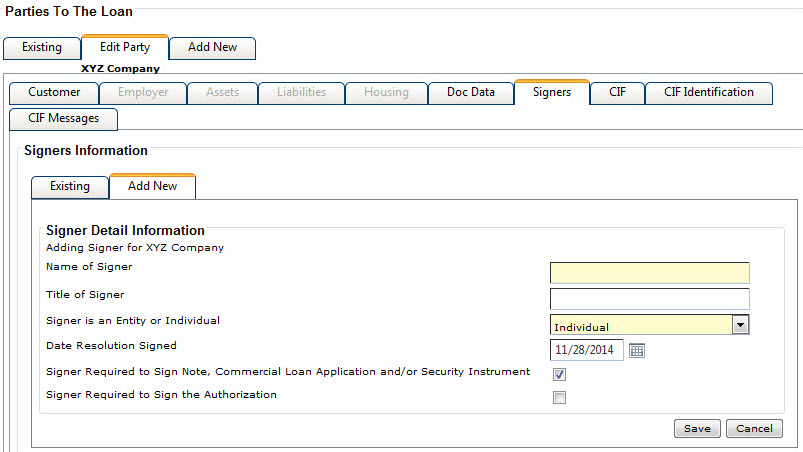
-
Click
 Add Child Signer to
add the nested entity signers.
Add Child Signer to
add the nested entity signers.
-
Click Cancel to return to the Existing tab.
Note The
 Assign Authority for
Signer option is available after you return to the Existing tab, and is only available on the entity signer's row for the
main signer level and first entity signer. Authority selected on the Assign Authority for Signer screen prints on the Authorization Form.
Assign Authority for
Signer option is available after you return to the Existing tab, and is only available on the entity signer's row for the
main signer level and first entity signer. Authority selected on the Assign Authority for Signer screen prints on the Authorization Form.