The Right of Rescission (ROR)
document does not generate for new construction loans. The loan must meet specific criteria
during the workflow process to generate this document.
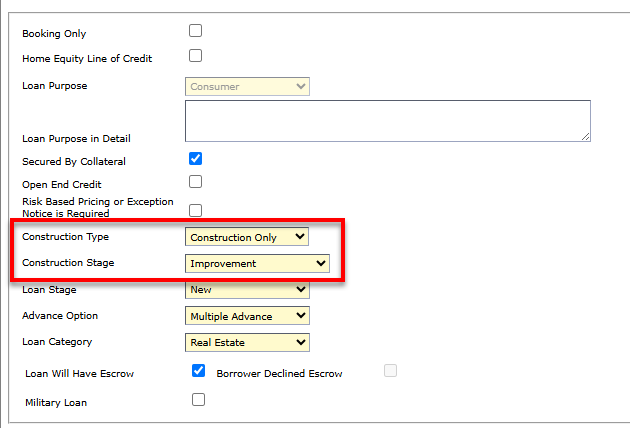
In the
Characteristics node, the Construction Stage
must have a value of Improvement to generate the Right of
Rescission document. Alternatively, the user can select the Bridge
Loan check box on the Real Estate node, if
applicable.
-
Navigate to
OnBoard Loans.
-
Select .
-
Select Edit on the correct product.
-
Verify that the Construction Stage field does not have the
Protected check box selected.
-
Navigate to .
-
Search for and select the customer.
-
Complete all required fields on the Parties to the Loan
node.
-
Complete the following steps on the Characteristics node:
-
Select a Construction Type.
Note This value cannot be None.
-
Verify that the Construction Stage field dynamically
appears.
-
Select a value of Improvement for the
Construction Stage field.
-
Complete all required fields on the Characteristics
node.
-
Complete the following steps on the Collateral node:
-
Select a Collateral Type value.
-
Verify that the appropriate parties appear in the Select Parties as
Collateral Owners section.
-
Select The Collateral Securing this Loan is a Dwelling check
box in the General Information section.
-
Select The Collateral Securing this Loan is the Owner's Principal
Dwelling check box in the General Information
section.
Note
The Collateral Securing this Loan is a
Dwelling and The Collateral Securing this Loan is the
Owner's Principal Dwelling must both be selected for the Right
of Rescission document to generate.
-
Select the Collateral Purchased with Loan Proceeds check
box.
-
Complete all required fields on the Collateral node.
-
Advance to the Real Estate node and complete the following
steps:
-
Select the Bridge Loan check box.
Note Only select Bridge Loan if it is
applicable.
-
Select Loan is a Refinance From Another Lender or the Origination of a
New Rescindable Loan check box.
Note Only select this check
box if the loan is a home equity line of credit (HELOC).
-
Select Intended Purpose for the Loan check box.
-
Complete all required fields on the Real Estate node.
-
Advance to the Doc Manager node and complete the following
steps:
-
Select a Documents Provider Engine value.
-
Select Create on the Doc List (Expere)
tab.
-
Verify that the Right of Rescission document appears correctly.