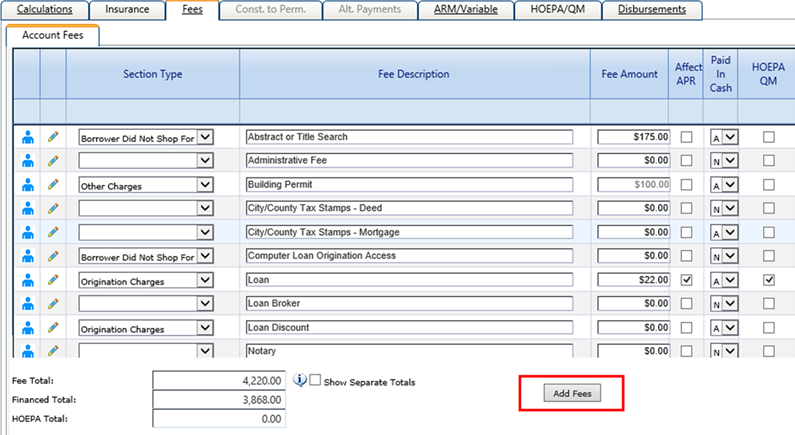
The Add Fees button allows users to add
fees that are not tied to the product type used to create the transaction, at the account
level.
-
Select
Add Fees.
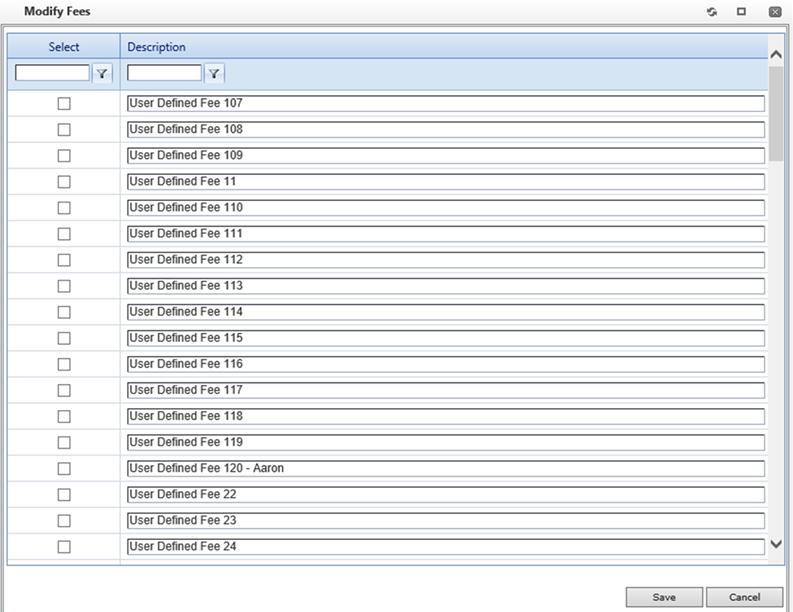
The Modify Fees window appears, listing all the fees that exist at
the system level that are not tied to the product type used to create the account.
-
Select a fee to add to the
transaction.
Users can also change the description of a user-defined fee within the
Modify Fees window.
-
Click Save.
The fee is added to the fee list in the
Fees tab. Any new fee that is added is placed in the sequence order that is
determined in . If there is no sequence number for the new fee, it is added at the end of
the list on the
Fees tab. If a fee has been added
through the
Fees tab, it remains part of that transaction
and cannot be removed by selecting
Update Fees.
Note If a fee has been added to the product
type but the transaction has not been updated, the user must select Update Fees to display that
fee. Fees tied to product type are not available on the Add
Fees window.