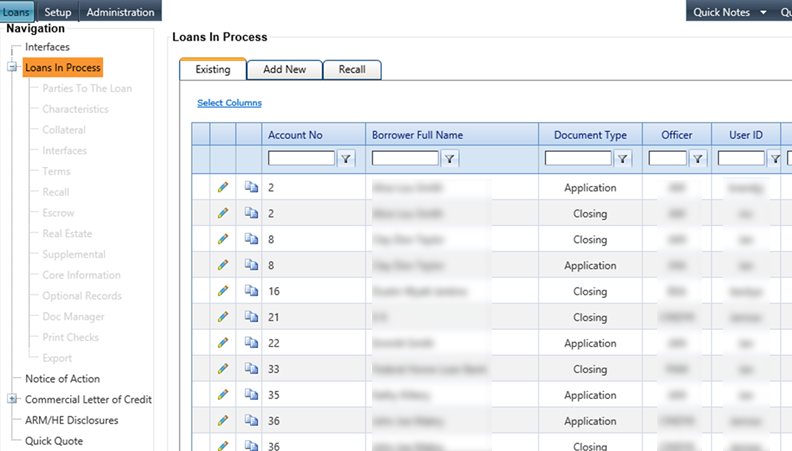
Complete the following steps to add parameters terms to an existing
loan.
-
Select .
The
Loans in Process screen
appears.
-
Select the
 Edit icon associated
with a customer account.
Edit icon associated
with a customer account.
The Parties to the Loan screen and node options for the
customer appear.
-
Select the Terms node.
The Loans in Process (Terms) screen appears.
-
Enter all required information in the fields within the
Calculations tab.
Note The Calculations tab is primary and must be completed prior to entering
information on other tabs.
Note The up and down arrows
next to the Interest
Rate and the Amortization Payments fields are quick keys for incrementally increasing
or decreasing the fields. Certain information on this screen defaults automatically,
depending on your product setup. You can change the default settings by selecting the
drop-down menus.
-
Enter all required information in the fields within the
Disbursement tab.
Initial disbursement for loan proceeds must be
saved prior to completing the entry, or modification, of the additional information.
Disbursement information is applicable to document printing.
-
Enter any required information in any of the remaining
tabs.
-
Select the Calculate button.
A Calculations screen appears, providing the capability to
review the term information.
-
Make changes when required, and select
the Calculate button
to recalculate.
-
Select Save to save the Terms node.
CAUTION
This step is required to access additional nodes after the
Terms node.